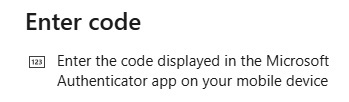
- If you get a new phone, please contact Eclipse Service Desk servicedesk@eclipse-networks.com or 770.399.9099 so that we can help you setup the authenticator.
- Please see questions\tips and tricks at the bottom of this page.
🔐 What’s Changing?
📱 Key Features of the New MFA
Microsoft Authenticator App:
- Available on iOS and Android.
- Replaces SMS and phone call verification.
Number Matching
- When you sign in, a number appears on your screen
- You must enter this number into the Authenticator app to approve the sign-in.
- Prevents accidental or malicious approvals.
🛠️ What You Need to Do
Install Microsoft Authenticator:
Download from the App Store or Google Play on your mobile device
Microsoft Authenticator – Apps on Google Play
Microsoft Authenticator on the App Store (apple.com)
Register the App
- Click and go to https://mysignins.microsoft.com/security-info
- Click Authenticator app
- If prompted, sign in with your email address and your computer password.
- Example JDoe@eclipse-networks.com
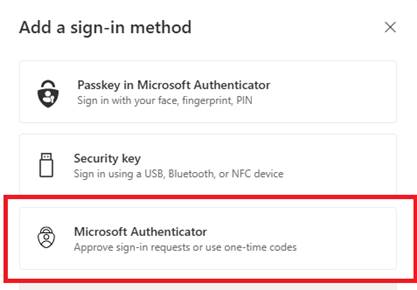
- Click “Add Sign-in method” and select Microsoft Authenticator
- You’re required to register for and use Microsoft Entra multifactor authentication
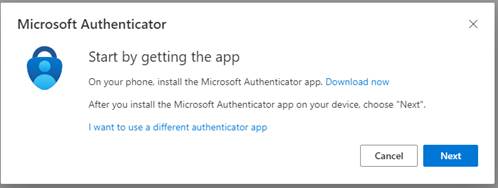
- Click Next
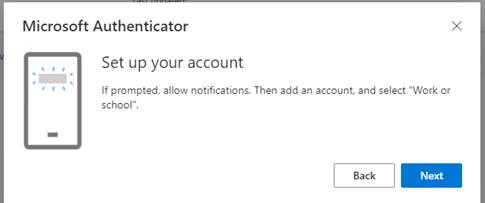
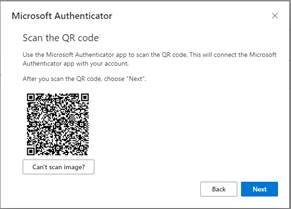
- Open up Microsoft Authenticator App and click + sign in upper right hand corner.
- Click Work or School account
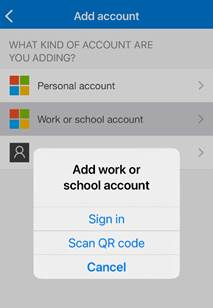
- Scan QR code
- Enter in code on screen
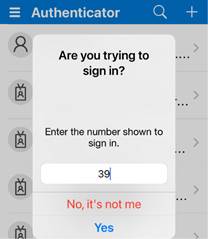
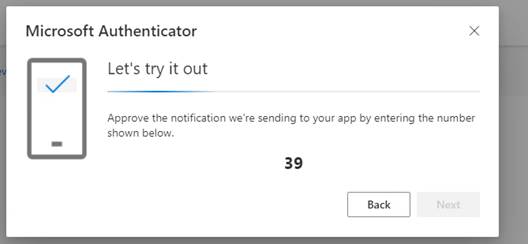
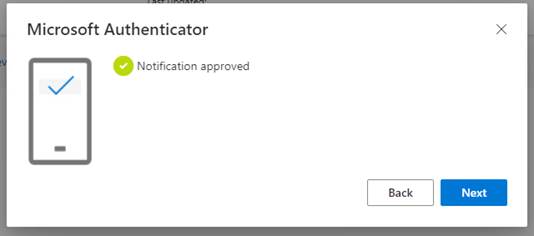
You’re all Done! In conclusion, the user configuration for Multifactor Authentication is now complete. Each user will be prompted for multifactor authentication when logging in from an unknown location, ensuring enhanced security for accessing Microsoft 365 Online from anywhere.
🔐 Questions\Tips and Tricks
Allow Notifications – IPHONE
- Open up Settings
- Look for the “Notifications”
- Scroll down and select “Microsoft Authenticator”
- Enable “Allow Notifications”
Allow Notifications – ANDROID
- Open the Microsoft Authenticator app.
- Tap on the menu icon (three horizontal lines) located at the top left corner of the screen.
- From the menu, select “Settings.“
- In the Settings menu, tap on “Notifications.“
- Toggle the switch next to “Push Notifications” to enable them
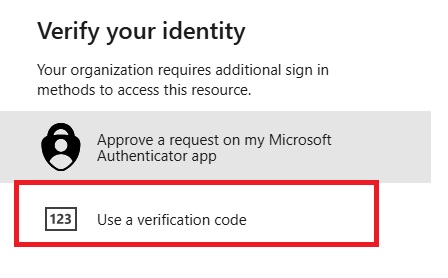
authenticator doesn’t automatically prompt
- Click “I can’t use my Microsoft Authenticator app right now”
- Click “use a verification code”
- Open up “Microsoft Authenticator”
- Click “No it’s not me” if u get this msg.
- Click on your email address
- Enter in one-time password in the Microsoft Pop-Up